

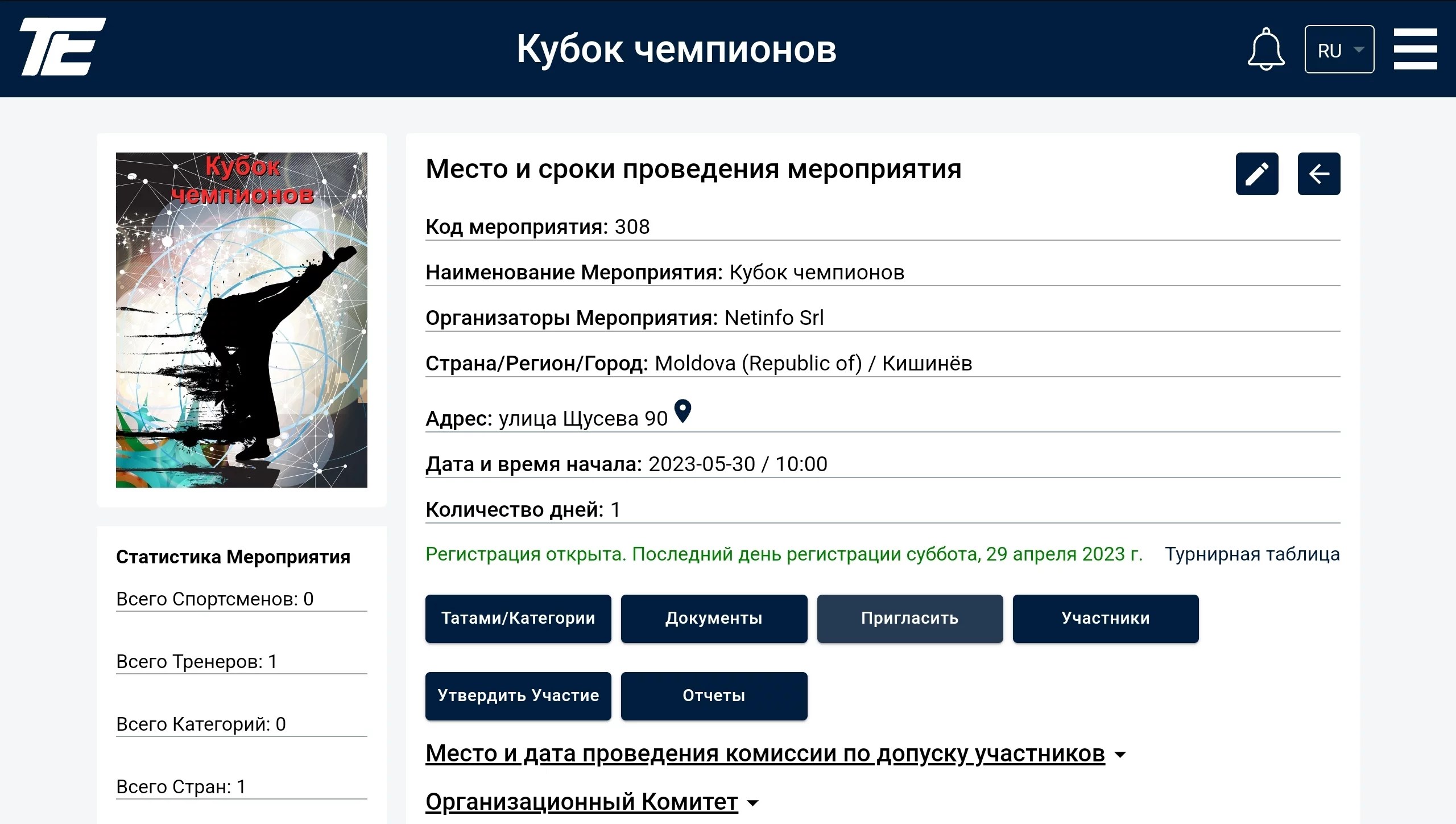
Today we will walk through the process of creating a tournament “passport”. This is a simple process, but it requires knowledge of many organizational details.
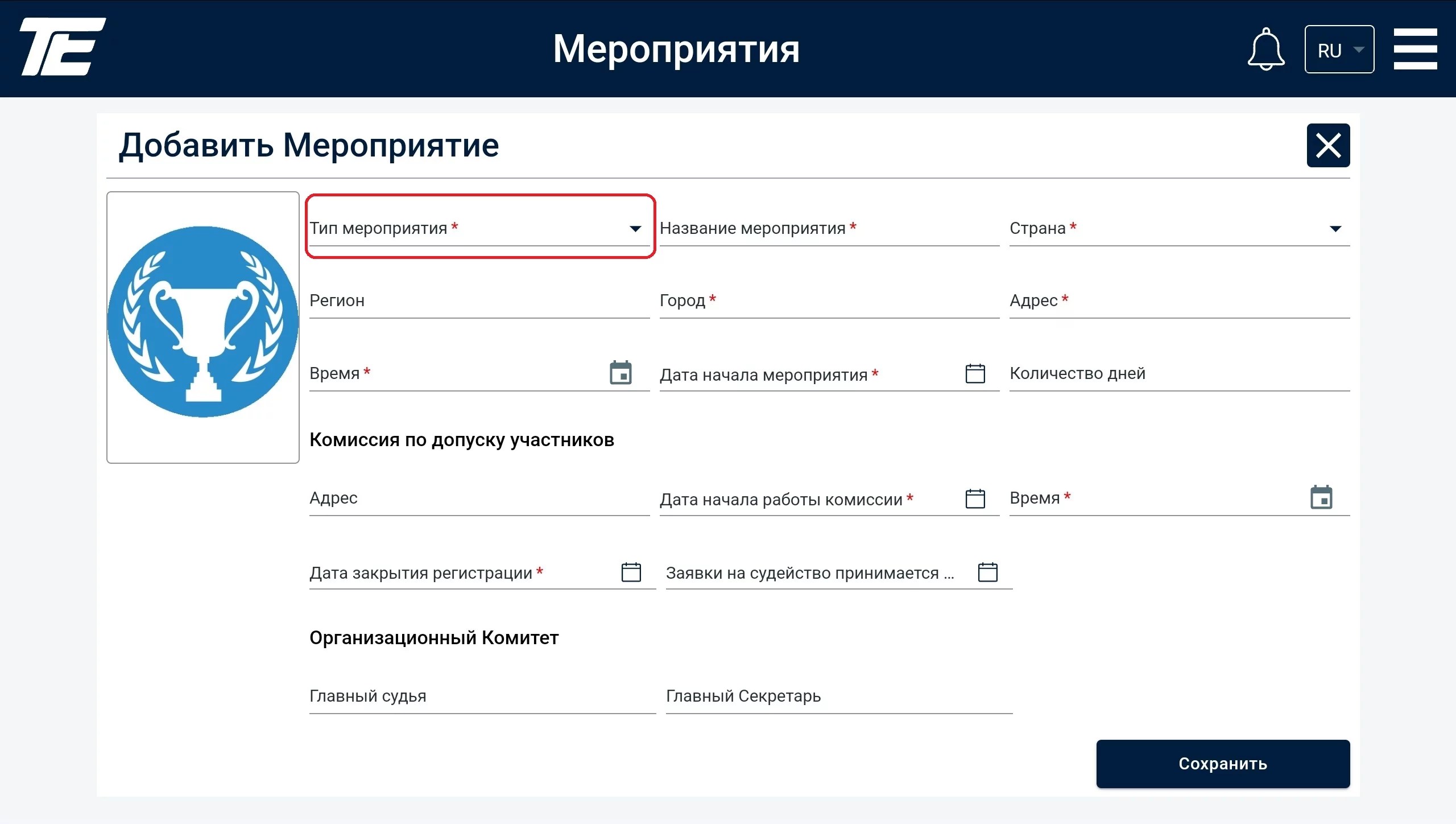
First of all, you should specify the type of event being held. To do this, use the drop-down list of the offered options.
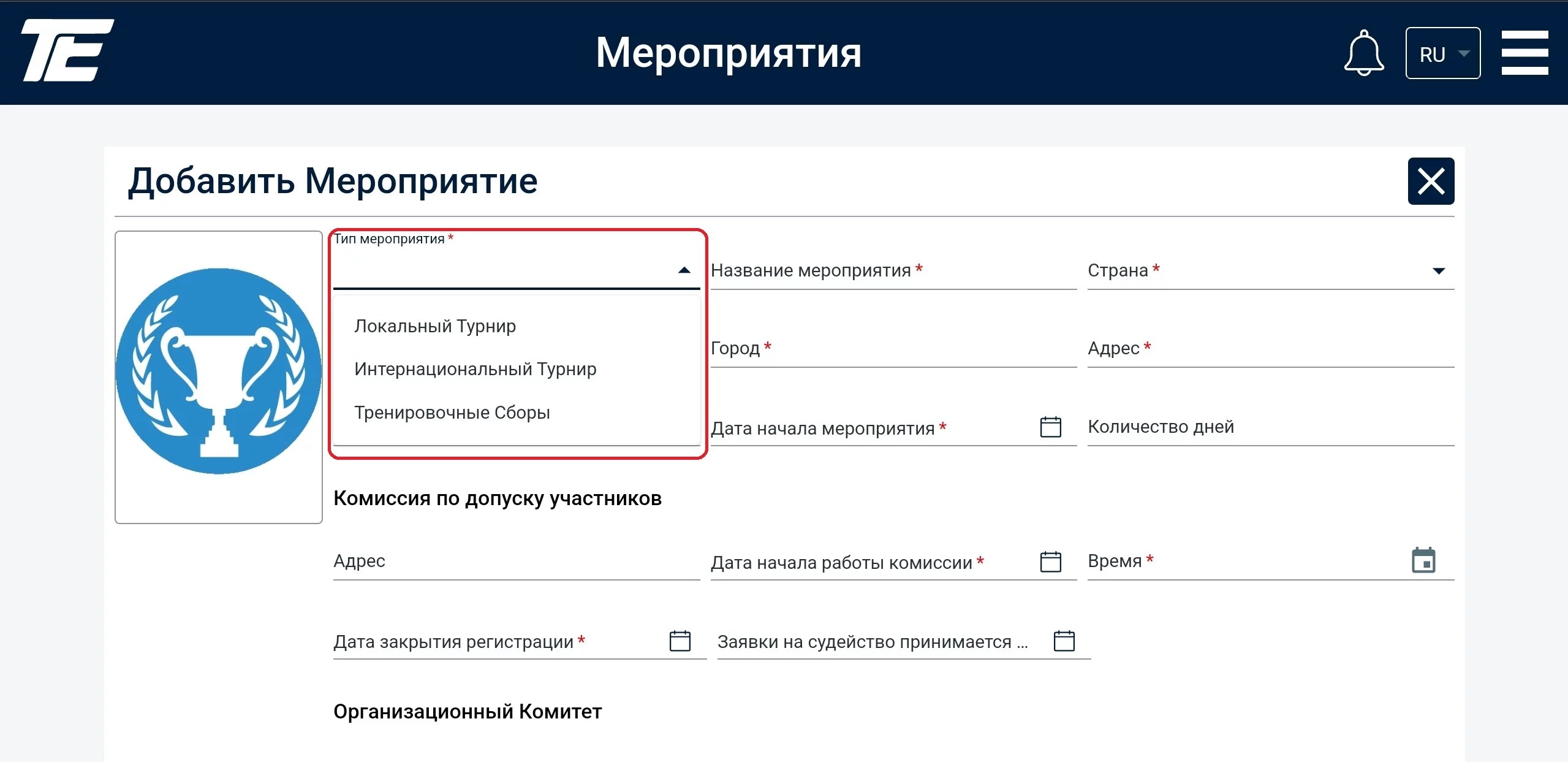
Sporting events come in the following types:
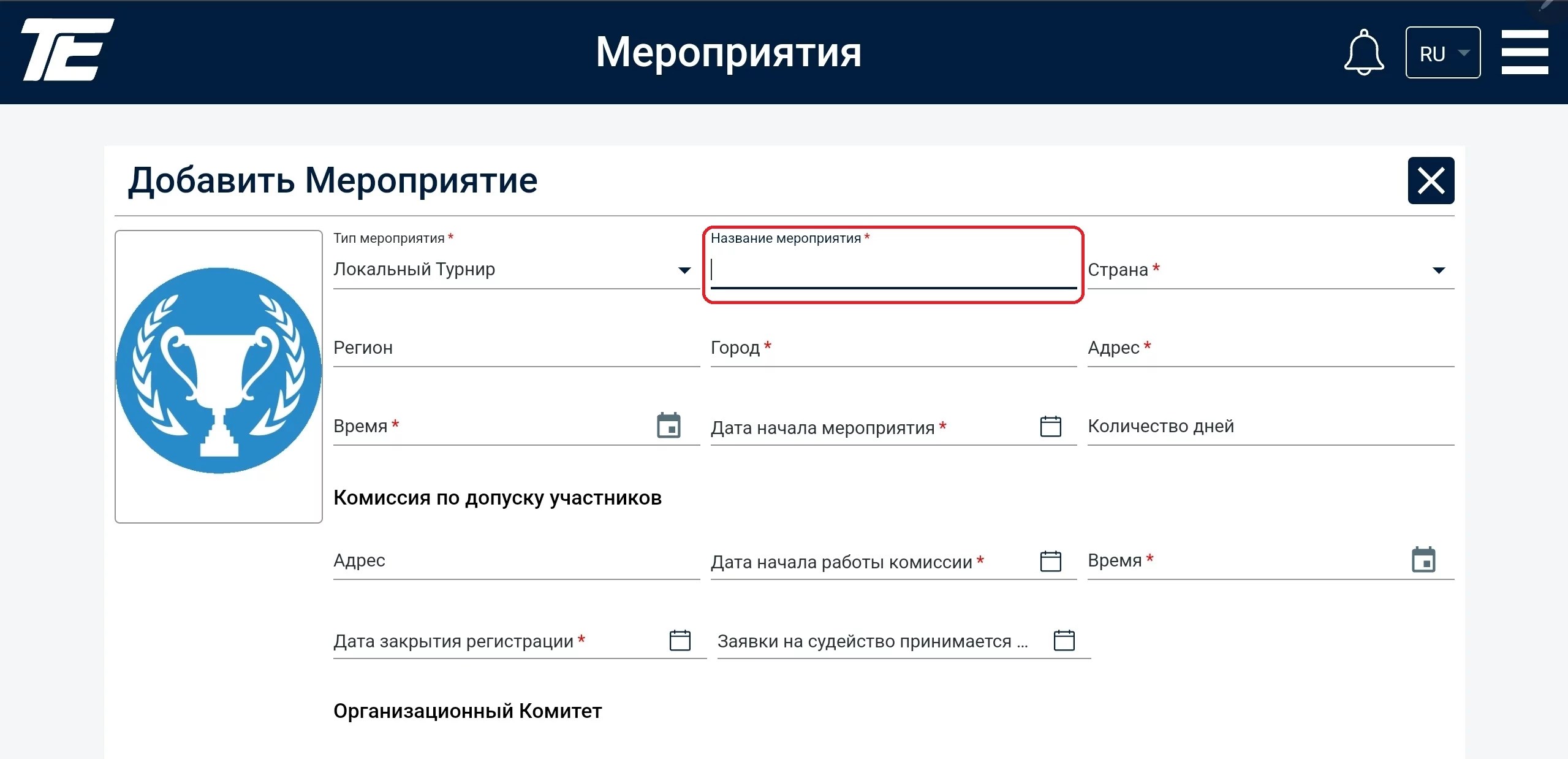
Next you need to enter the name of the event. Our web portal supports the use of special linguistic characters, characteristic of each language.
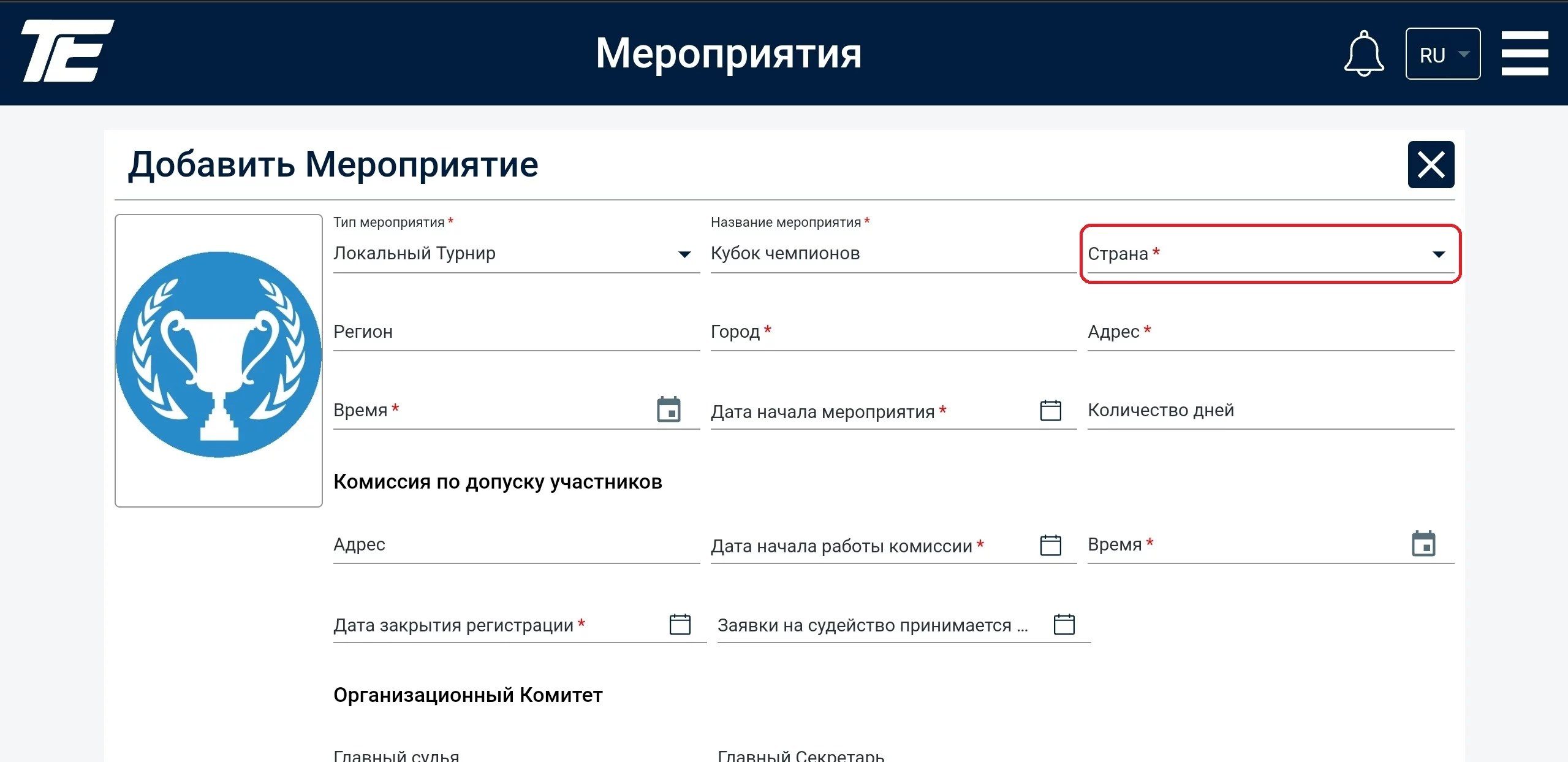
Next specify the country where the sporting event is being held. This is also a drop-down list of ready-made options. However, for convenience you can type the first letters — this activates the search filter.
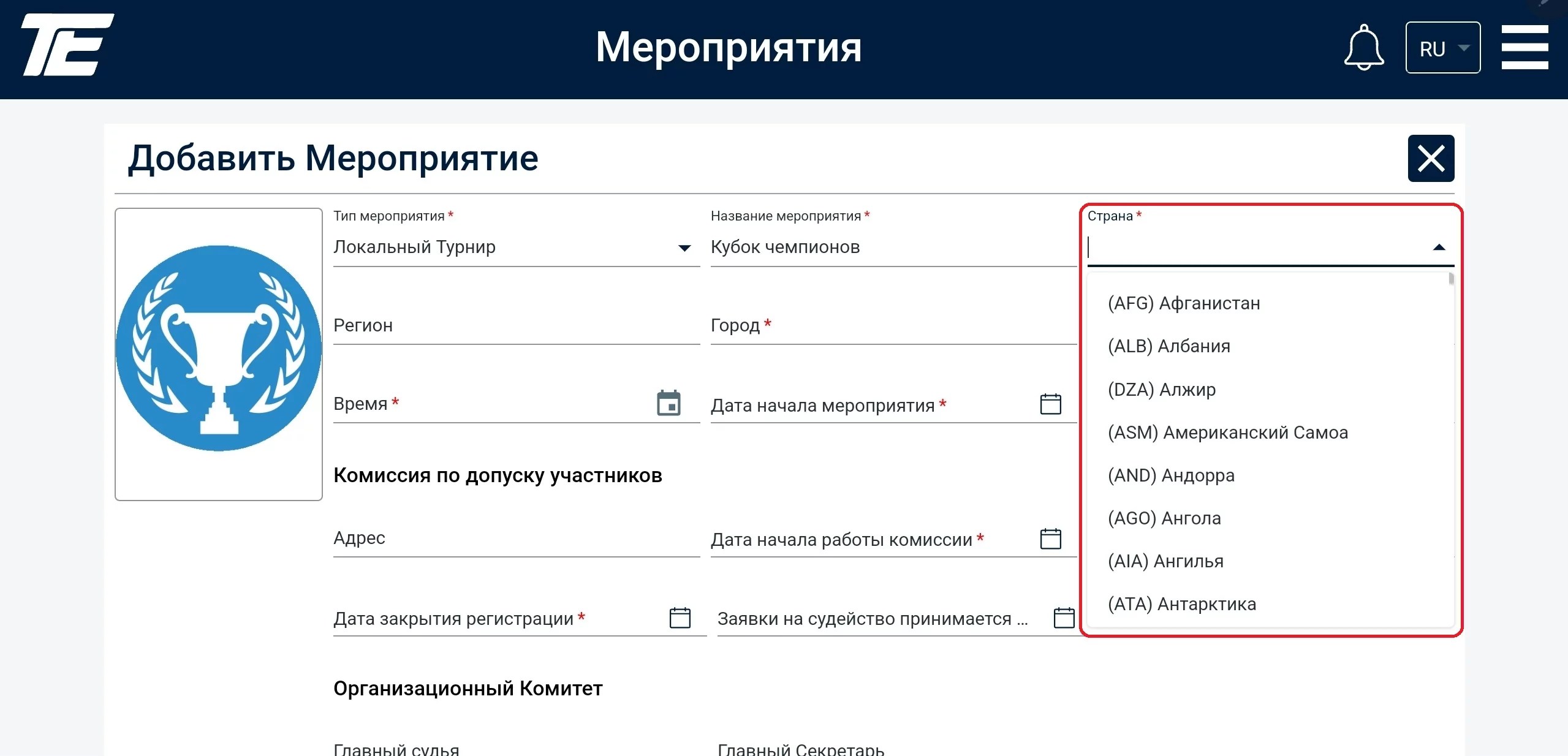
Nomenclature search is also available for use (the three Latin letters, used worldwide to denote a particular country).
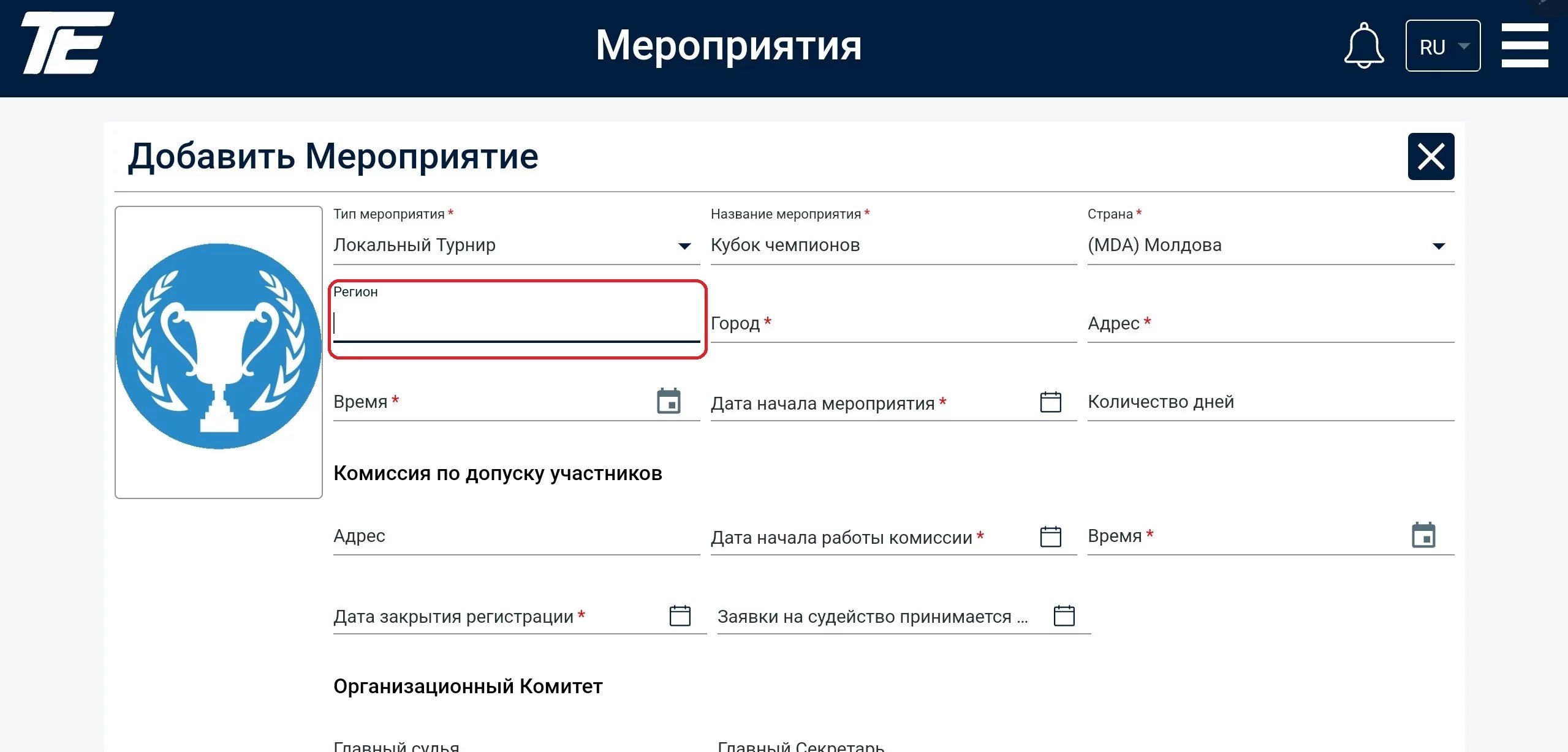
The Region field is not required. If your country has no regions, or if this is not a widely used term, this field can be skipped.
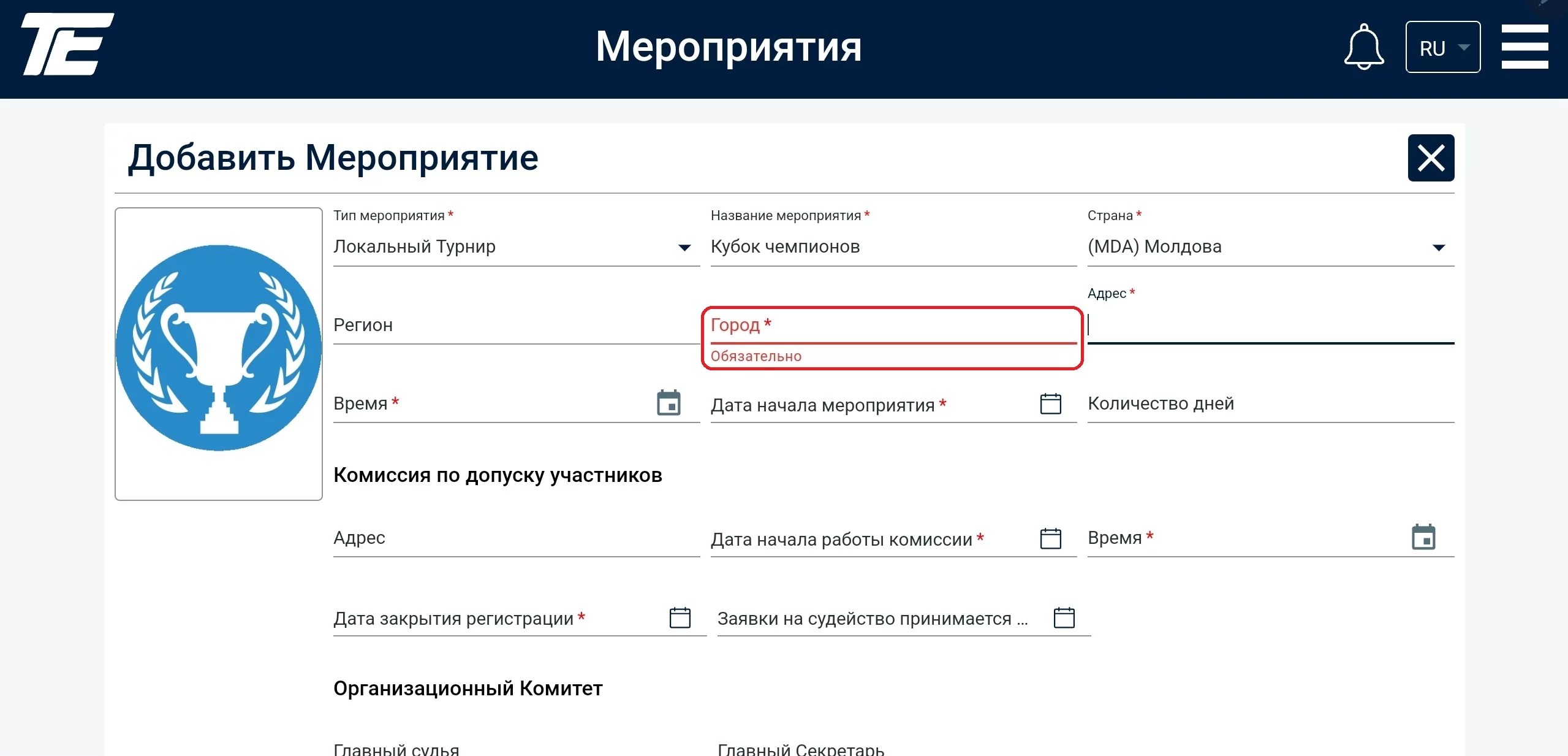
However, if the field is required, it will be highlighted in red.
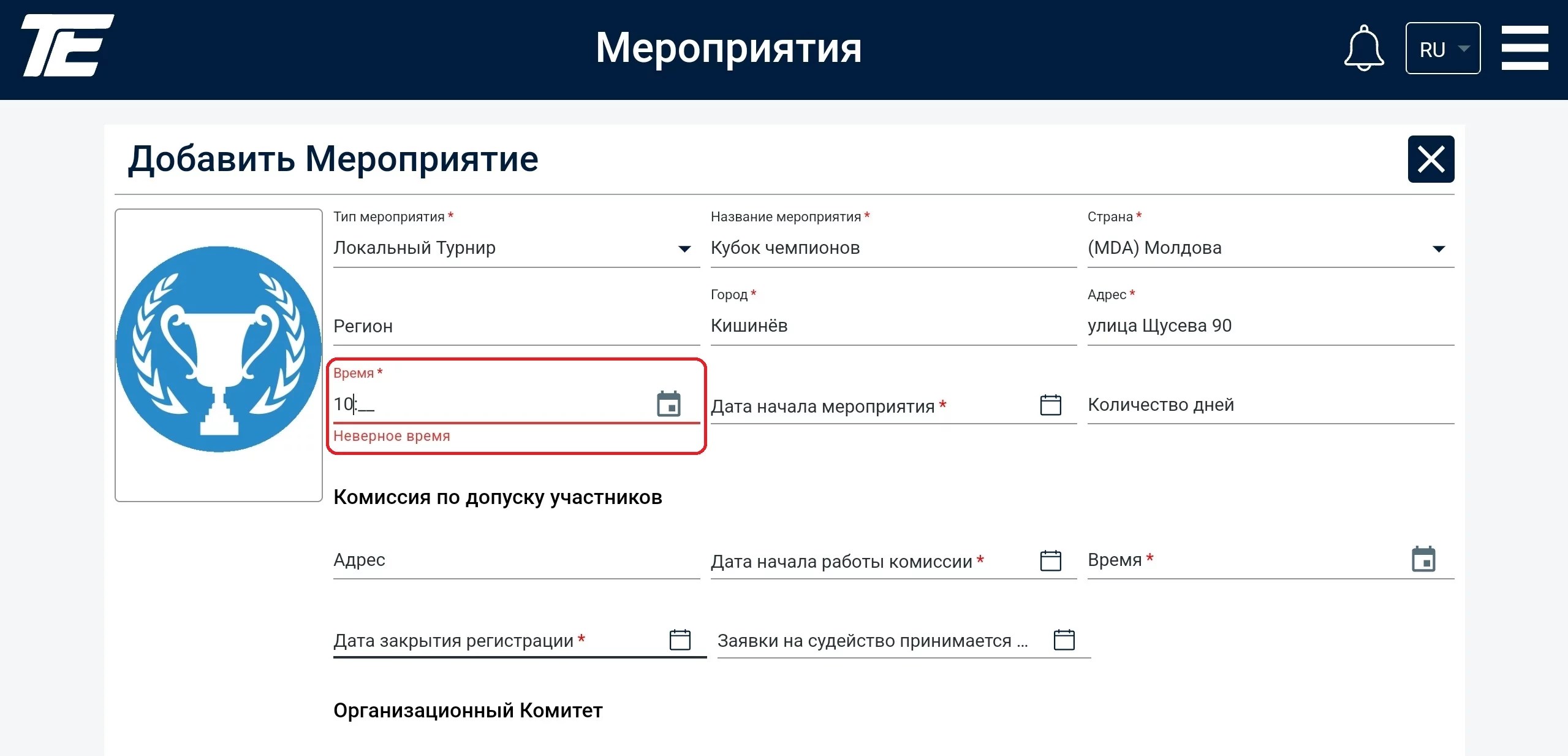
The time can be entered manually or you can use the programmatic clock
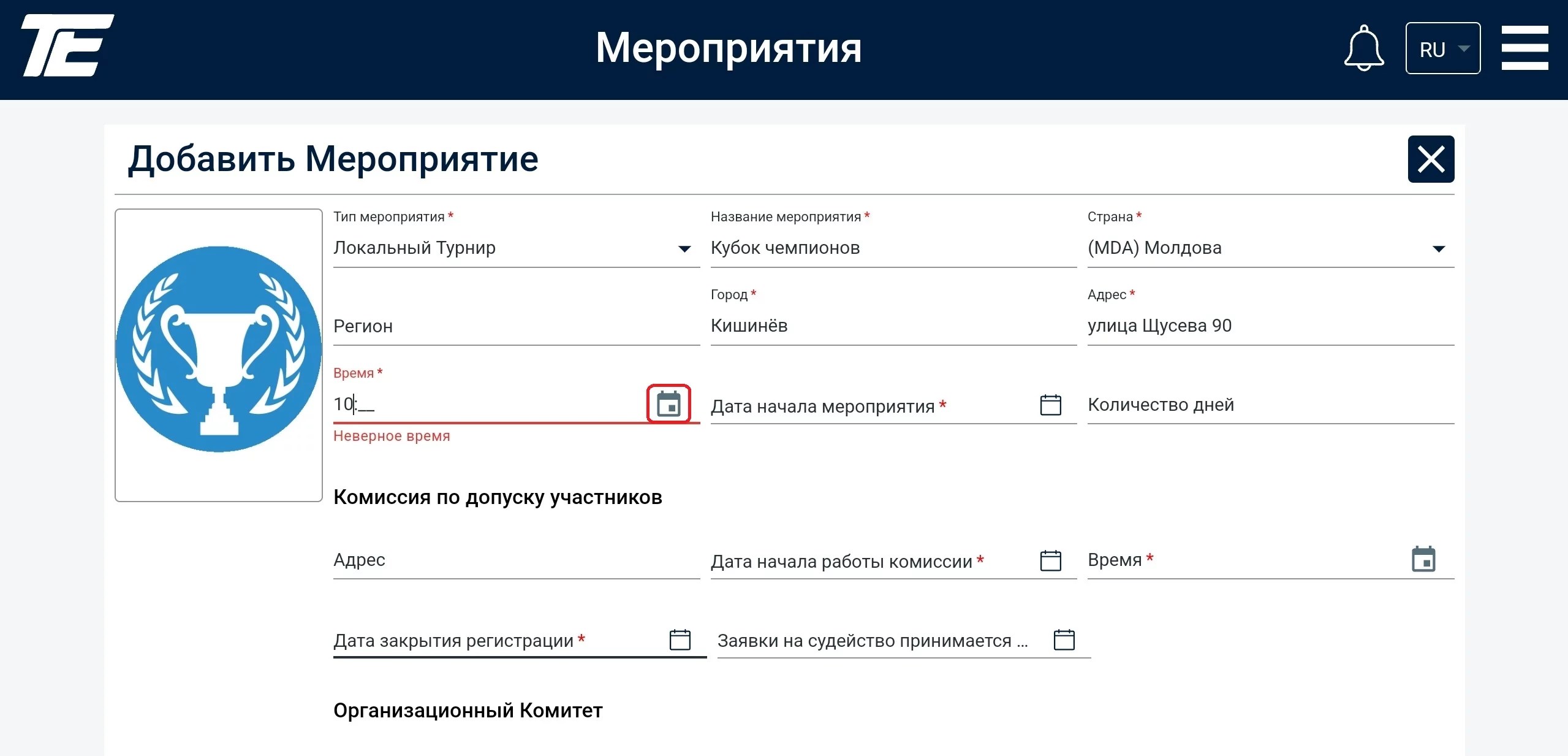
To do this, click on the icon in the corner of the field
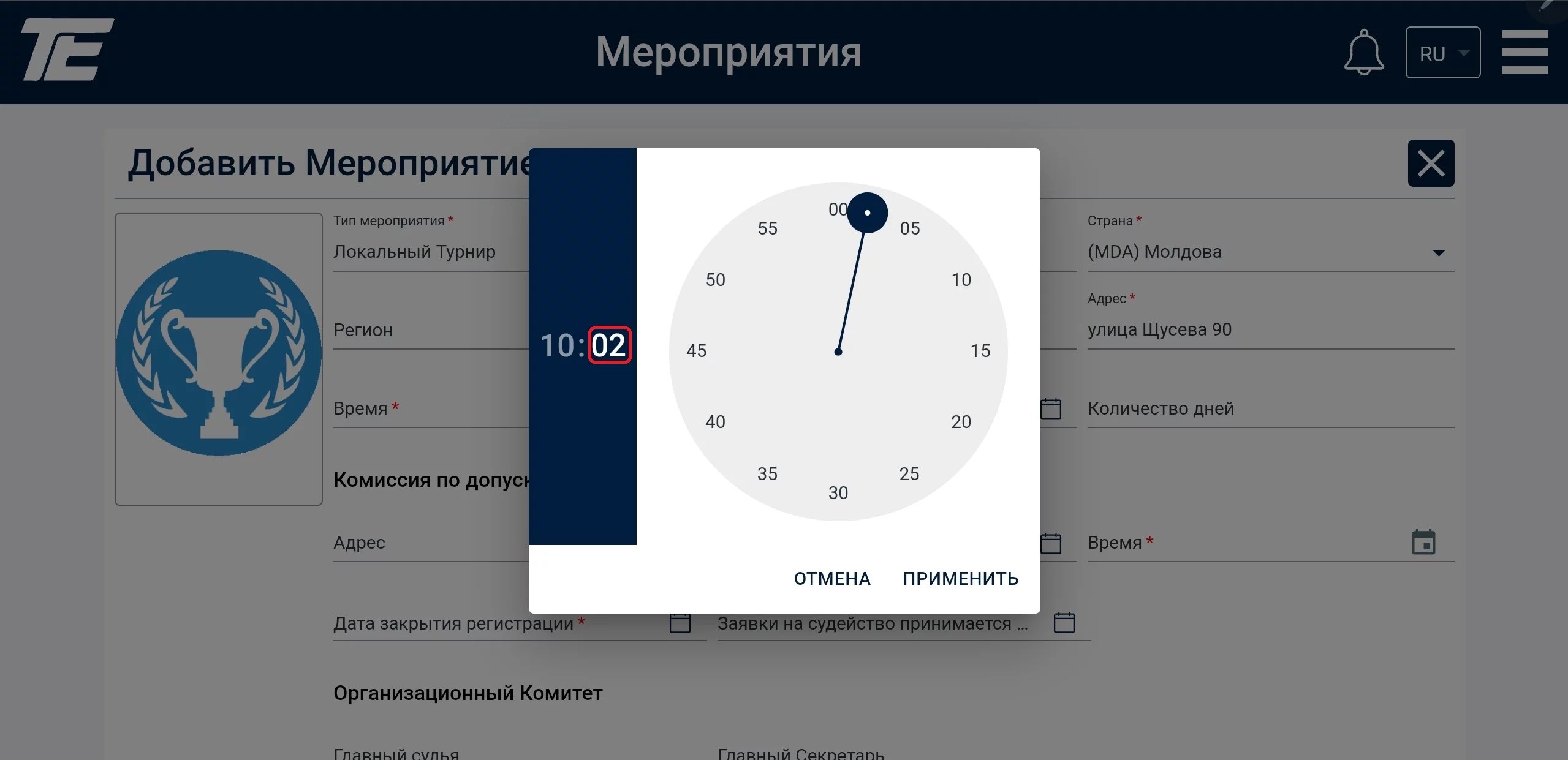
In the example above you can see how to enter the starting minutes of the tournament.
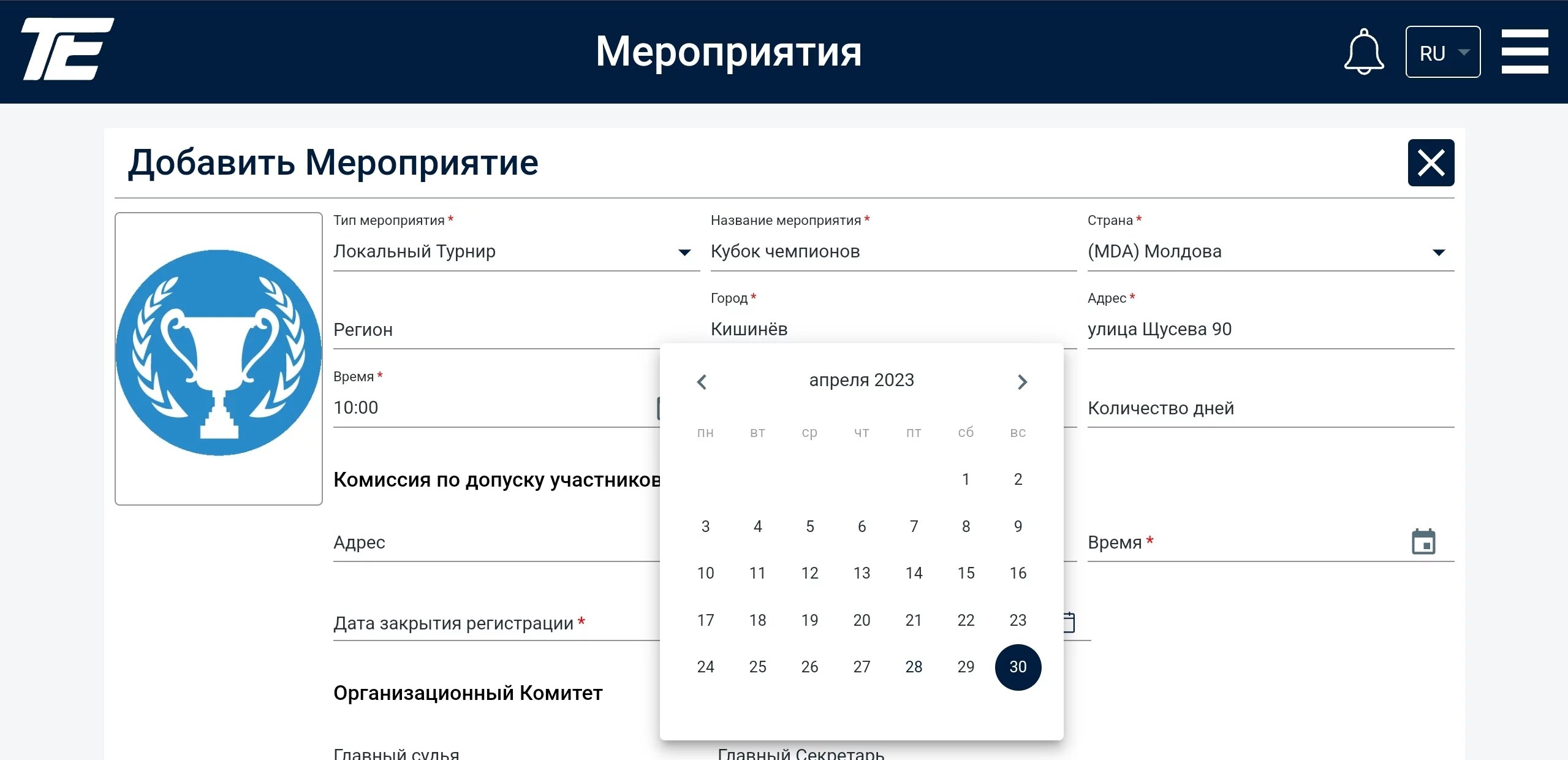
A similar principle exists for entering the date of the tournament.
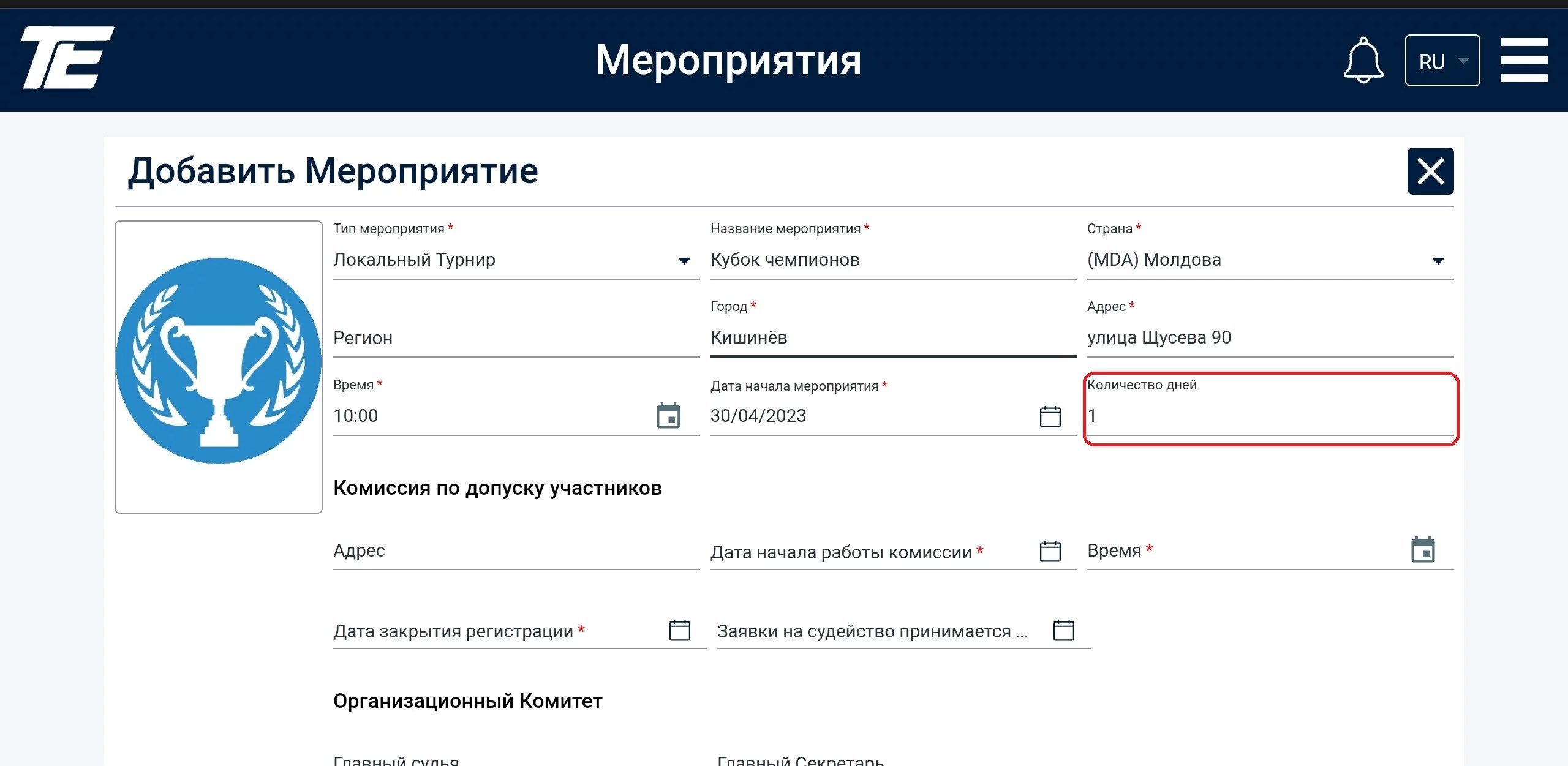
Important! Be sure to specify the number of full days of the tournament, including the award ceremony. If the tournament lasts one day and the award ceremony takes place the next day, the total number of days is specified as 2 days.
If the sporting event lasts half a day over the course of a calendar week, the number of days will be 7.
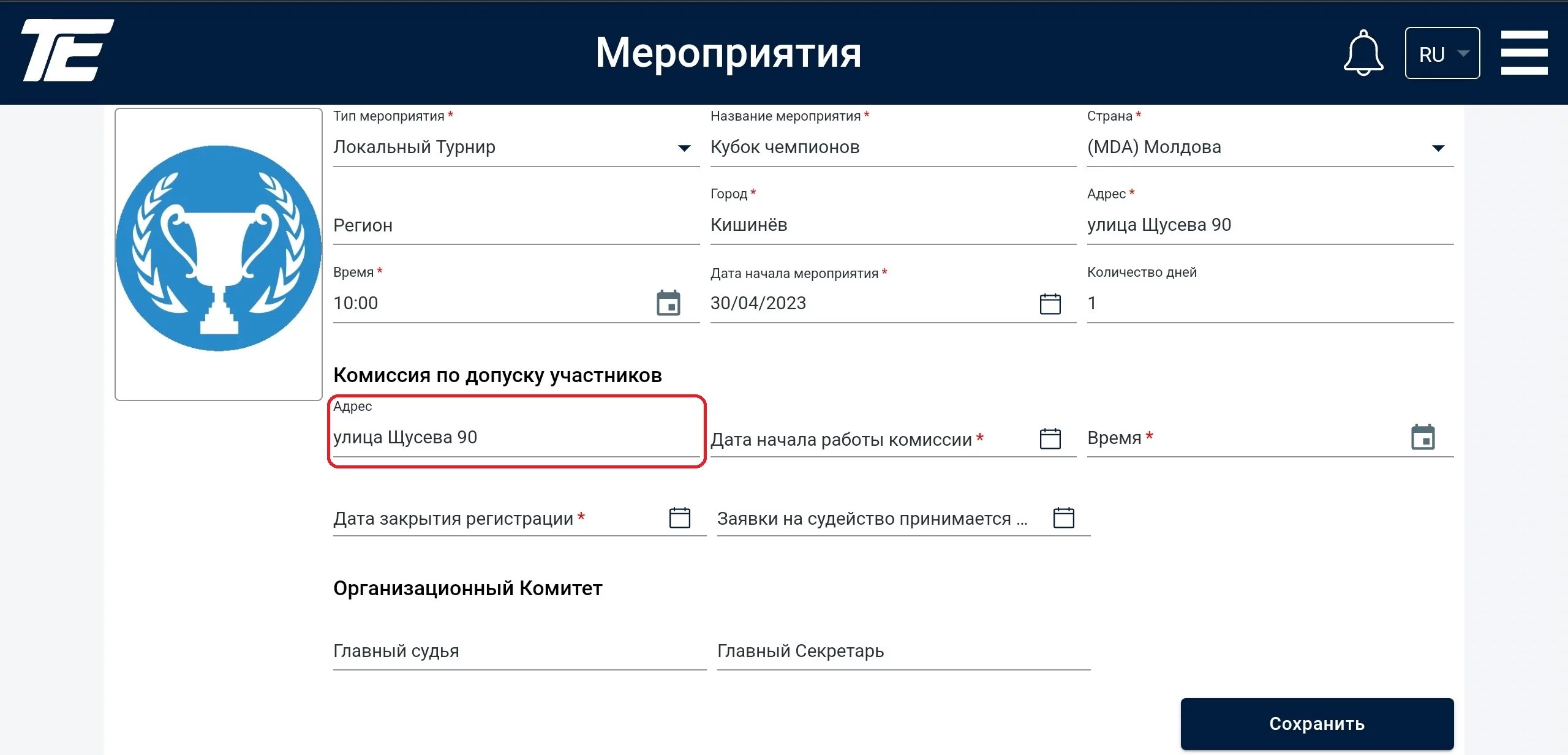
The address of the participant accreditation committee may coincide with the location of the tournament or may be different.
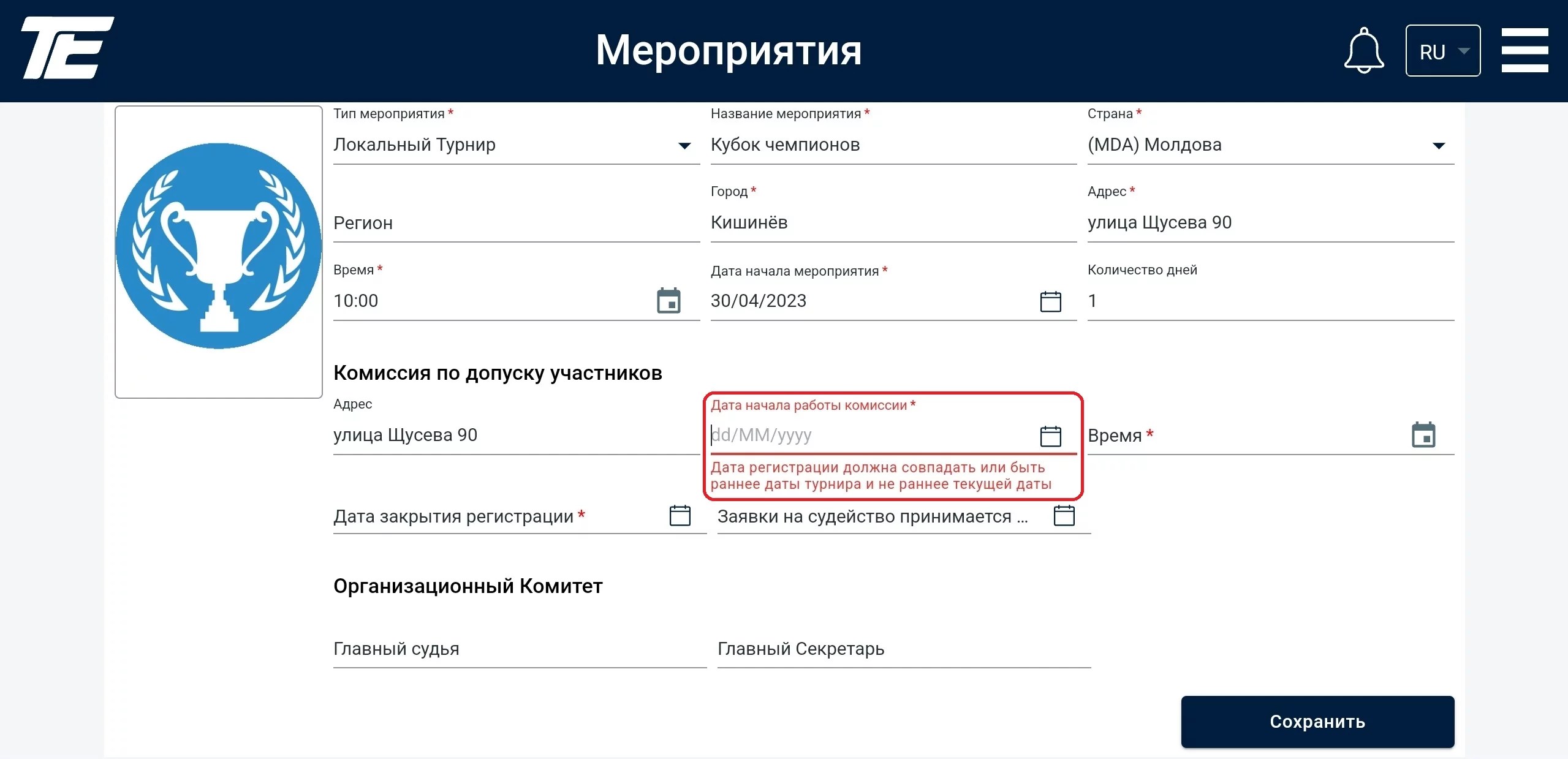
Important! The date the committee starts working and the registration closing date cannot be earlier than the date the tournament was created (the web portal does not support entering the date this way).
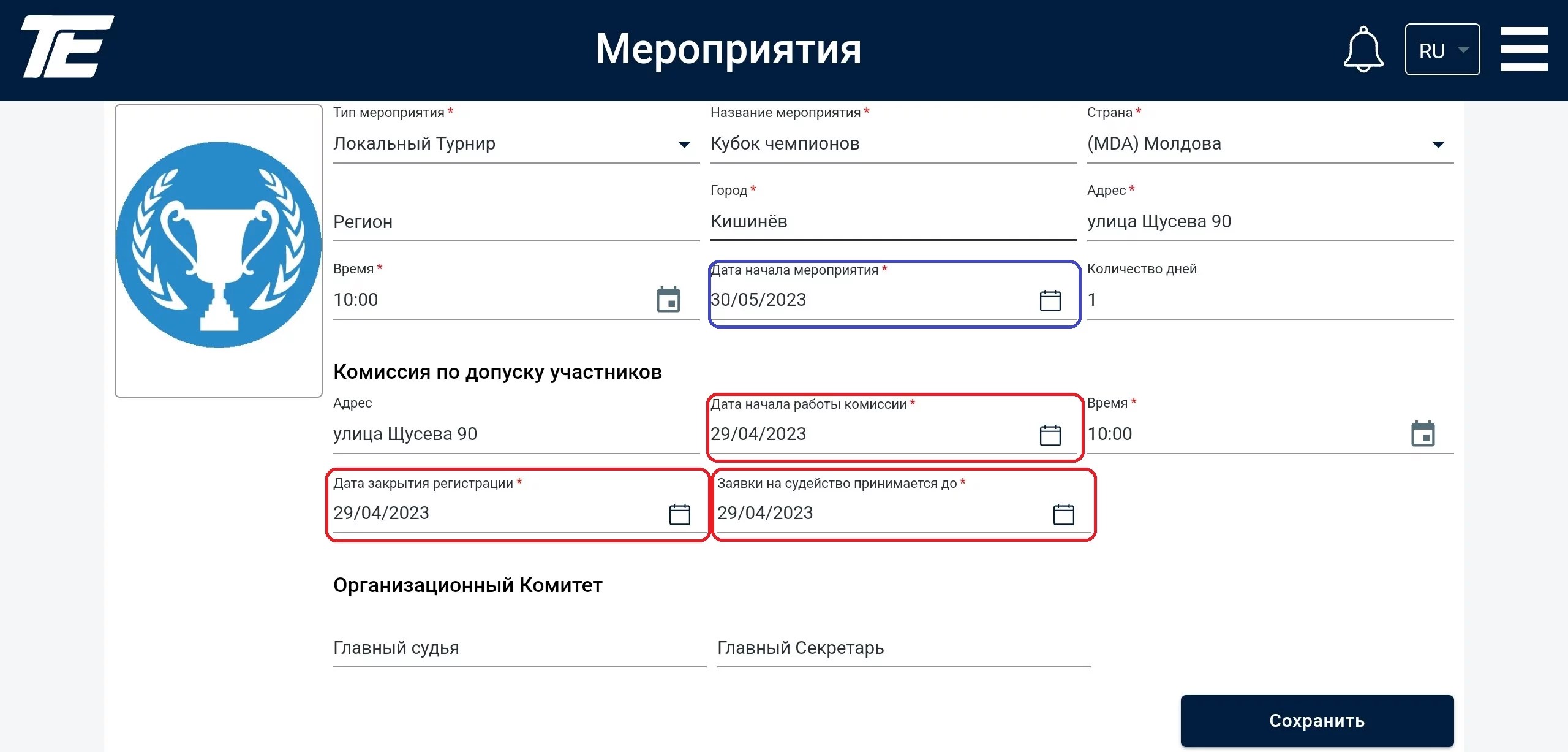
Therefore, we strongly recommend creating the sporting event in advance and having at least a month difference between the start of the tournament and the registration closing date.
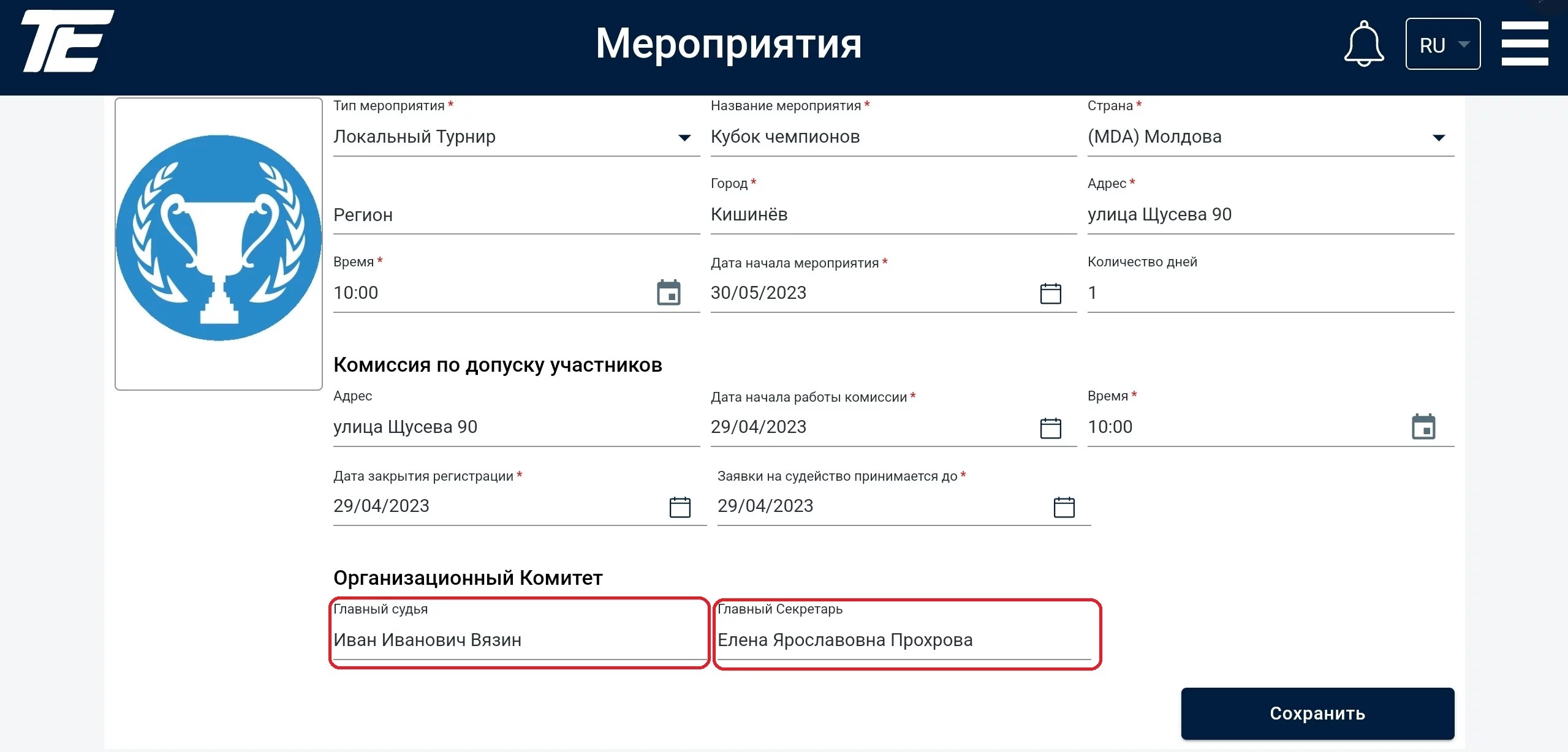
Next, you can enter the names of the Chief Referee and the Chief Secretary.
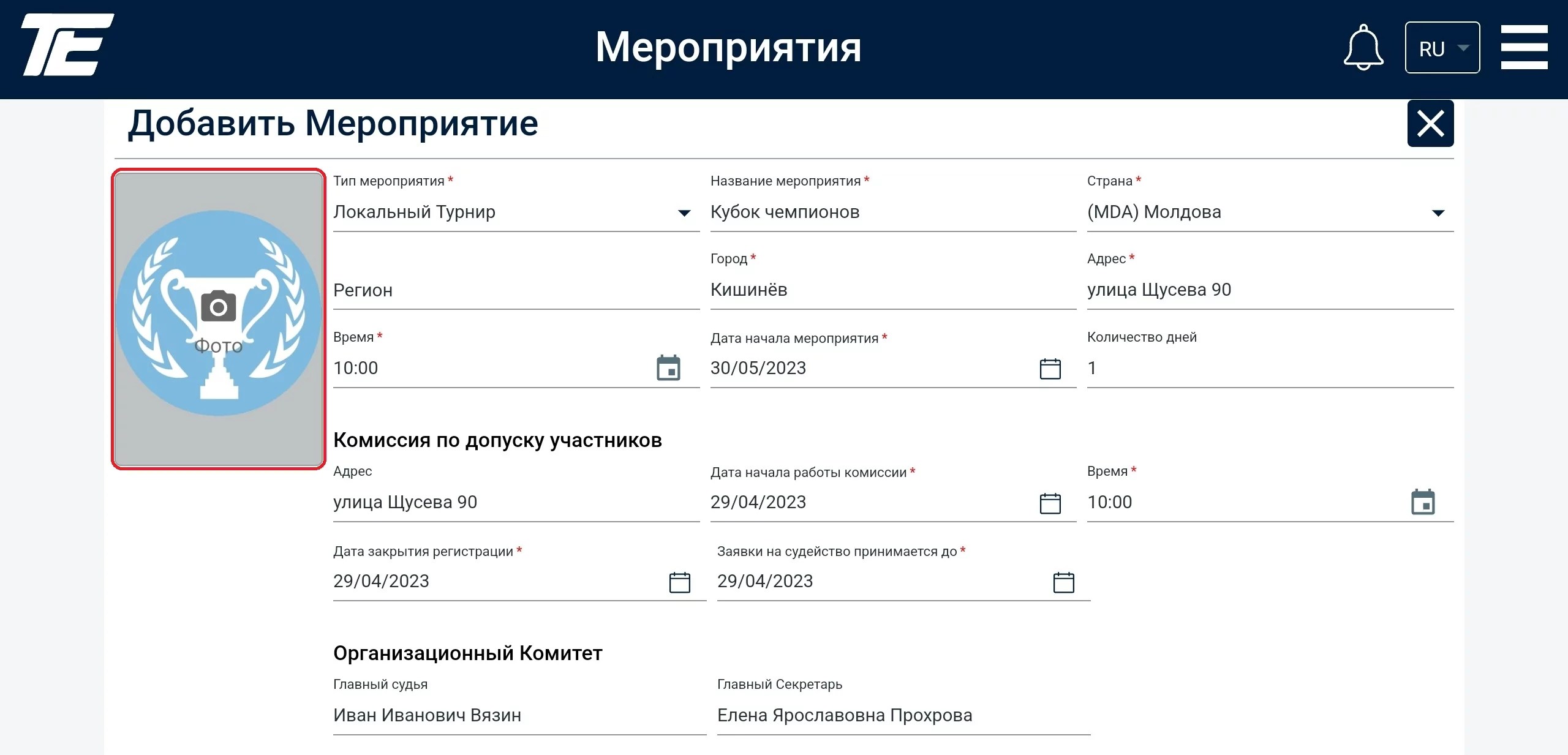
In conclusion, you can add a poster (flyer) for the upcoming event. If the poster is not ready yet, it can always be added later in edit mode. Until then, the web portal will generate a random version.
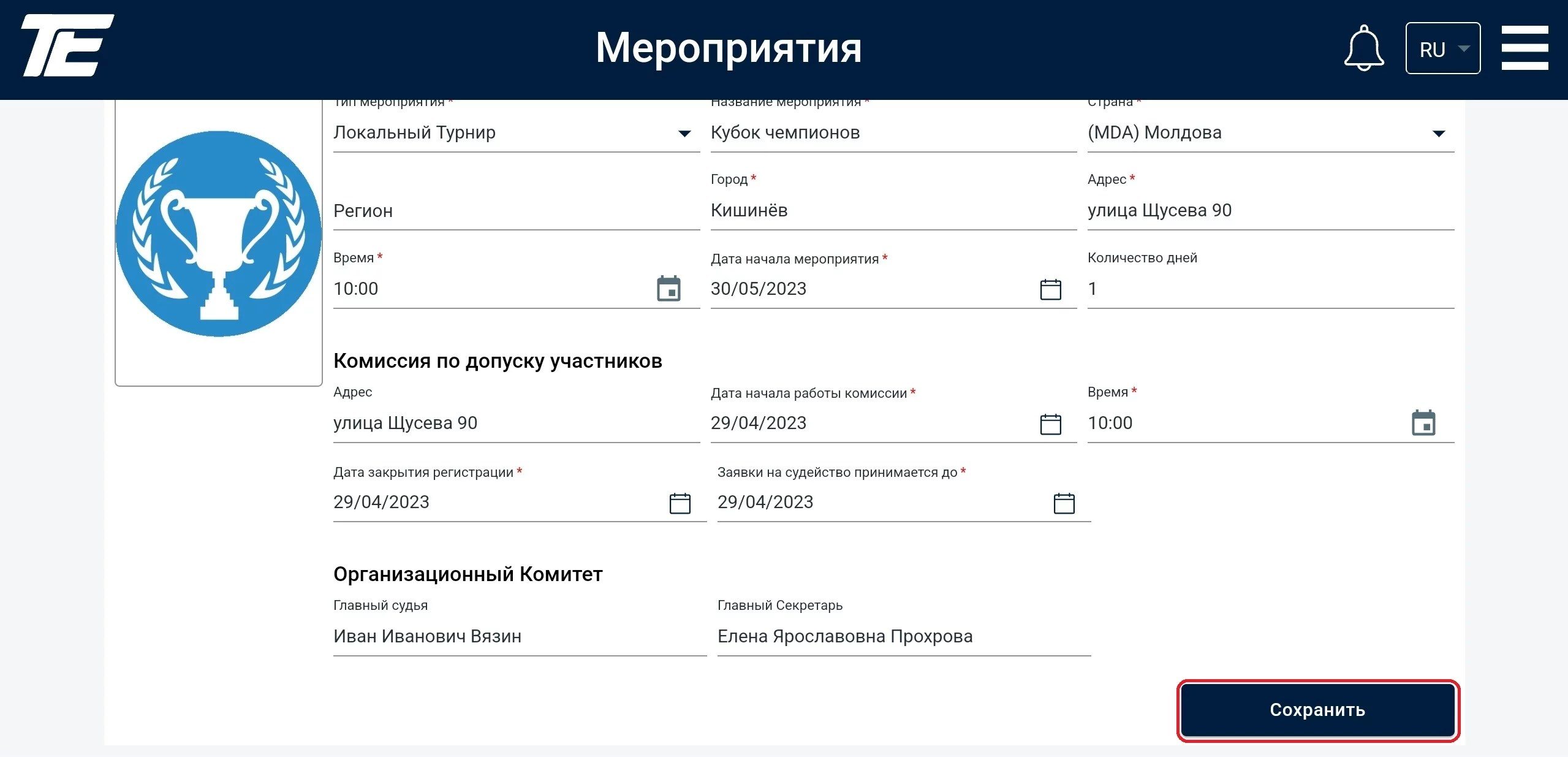
If all the data is filled in, you can save the tournament.
Congratulations! Your sporting event has been successfully saved on the web portal and is ready for further use!
.svg)